- What is FollowMe Forwarding?
- How does it Work?
- Setting up your [feature] for the First Time
- Logging In
- Receiving Calls
- Stored Numbers
- Configuring FollowMe Forwarding
- Managing Voicemail
- Configuring Call Screening
- Configuring Notification
- Configuring Group Messaging
- Viewing Call History
Introduction
Your new Follow-Me with Voicemail service is specifically designed for mobile employees. It provides you with enhanced call forwarding features to ensure you never miss important calls regardless of where you are. Your FollowMe service also includes your voicemail box.
This tutorial will guide you through the process of setting up and customizing your new Follow-Me with Voicemail service, and explain how to use its basic and advanced features.
By enabling your FollowMe call forwarding via your personal website, you will have the ability to route calls in the following ways:
FollowMe forwarding is only available through your personal website and works differently than the forwarding you can activate through your phone. The forwarding through your phone can only send calls to ONE other number and CANNOT take a message in your voicemail box if that number is unanswered. Your FollowMe forwarding does that and much more.
This section of the tutorial covers the following:
Let's begin…
Getting Started
This information will assist you in beginning to use your new Follow-Me with Voicemail service. At this point you should have received your FollowMe Service and temporary PIN. This section of the tutorial covers the following:
What is FollowMe Forwarding?
Follow-Me with Voicemail service includes advanced call forwarding capabilities that you can control from your personal website. Your FollowMe service also includes your phone's voicemail box. By default, your phone has been setup to send calls to voicemail if you do not answer.
How does it Work?
When someone calls your phone (either by dialing your extension or phone number), your phone will ring then go to voicemail if you do not answer. If you are going to be away from the office phone or if you wish to ring the office phone and one or more phones at the same time, you will need to activate your FollowMe forwarding.
Setting up your [feature] for the First Time
When you first log into yourFollow-Me with Voicemail service via the phone or web, it is important to change your PIN from the temporary PIN you were provided, record your name and record your unavailable voicemail greeting. You may change your PIN, record your name and record your unavailable greeting at any time by following these instructions.
To setup your FollowMe Service by Phone:
NOTE: You may re-record your name and Unavailable Greeting at any time by pressing the voicemail button and entering your PIN when prompted. To change your Unavailable Greeting, touch 8 for user options. Once in the User Options Menu, touch 2 for General Introductions, and then touch 2 to re-record your Unavailable Greeting.
If you log into your FollowMe service through the web before setting up via the phone, you will be prompted to change your PIN:
The Basics
This information will assist you with learning to use the basic features of the Follow-Me with Voicemail service.
Logging In
In order to customize and manage your Follow-Me with Voicemail service, you must log into the web site at cp.serverdata.net/voice.
Once logged in, you will be able to configure your call forwarding, listen to voicemail and manage other aspects of your service such as changing your PIN, and setting up your voicemail notification. Additionally, you may access several features of your FollowMe service such as voicemail through your desk phone or any touch tone phone.
From your DESK PHONE:
To log into your FollowMe Service via your Desk Phone:
- Press the voicemail button on the phone.
- Enter your PIN when prompted.
From ANY phone:
To log into your FollowMe Service from any phone:
- Dial the phone number of your phone
- Allow your phone to forward to voicemail
- Enter your PIN during your voicemail greeting
To log into your Follow-Me with Voicemail service via the Web:
- Go to cp.serverdata.net/voice.
- Enter your Desk Phone number and PIN (or temporary PIN if it is your first time logging in).
- Manage voicemail
- Enable Call Forwarding
- Change your PIN
- Enable Call Screening
- Enable and modify your notification preferences
Callers dial your phone's phone number. If you have FollowMe call forwarding enabled, the call will route per the settings you created through your personal website.
If FollowMe Call forwarding is not enabled, your calls will route based on how you have set up your phone.
Stored Numbers
Stored Numbers allow you to enter your home and cellular phone numbers so that when you enable Call Forwarding you do not need to manually enter those phone number each time.
To save your Stored Numbers:
- Go to cp.serverdata.net/voice.
- Enter your Desk Phone number and PIN (or temporary PIN if it is your first time logging in).
- Click the Personal Info button
- Click the Stored Numbers button
- Enter your home and cellular phone numbers
- Click OK to save your changes.
Configuring FollowMe Forwarding
FollowMe Forwarding routes calls to different phone numbers so your callers can reach when you are away from your office. You can enable Call Forwarding and then choose to send callers to another phone, multiple phones at the same time, or multiple phones in a specific order. Initially, your service is configured with Call Forwarding turned off so that your calls ring to your office and then route to your voicemail box if the phone is unanswered.

To Configure Call Forwarding:
- Go to cp.serverdata.net/voice.
- Enter your phone's phone number and PIN.
- Click the Call Manager Tab.
- Click the FollowMe Forwarding button.
- Turn Call Forwarding On.
- Select the type of Call Forwarding you want. You may choose from:
- Send callers to a phone number of your choice
- Send callers to up to 5 numbers at the same time so that you may take the call on any of the ringing phones
- Send callers to up to 5 numbers in a specific order so that you may take the call on a specific ringing phone
- Click Save to save and activate your changes.
Your Follow-Me with Voicemail Service comes equipped with a built-in voicemail box. You may access your voicemail messages from any touch-tone phone or the web.
Voicemail Highlights:
- Listen to, save, or delete voicemail via the phone or web
- Instantly call back anyone who has left you a message without dialing a phone service
- Forward voicemail via email through the web
- Forward voicemail to other employees or groups of employees who have voicemail through the phone or web
- Download voicemail to your computer for later listening through the web
To listen to voicemail over the phone
- Press the voicemail button on the phone.
- Enter your PIN when prompted.
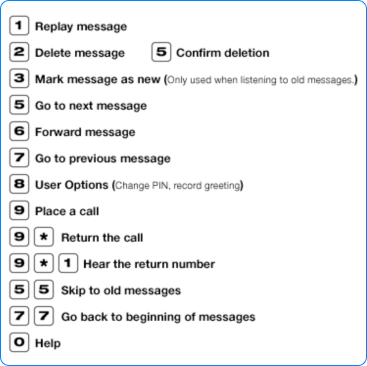
Note: You may touch 9* to call the person back who has left you a message, providing the system was able to capture his or her caller ID. You may touch ## to rebound back to your voicemail box when finished with the call.
To listen to voicemail via the Web:
- Go to cp.serverdata.net/voice.
- Enter your phone's phone number and PIN.
- Click the voicemail button on the left of the page (if the voicemail management page is not visible).
- Click the Play button associated with the voicemail you wish to listen to.
- You may also forward voicemail messages via email by clicking the Forward button and filling out the on-line form.
Advanced
The previous section of this tutorial introduced you to the Follow-Me with Voicemail Service.
This section of the tutorial covers the following:
- Configuring Call Screening
- Configuring Notification
- Configuring Group Messaging
- Viewing Billing Information and Call History
Configuring Call Screening
Call Screening allows you to manage your incoming calls better. You can choose between two types of Call Screening; Urgency Screening and Voice Screening.
Urgency Screening asks the caller if their call is urgent and then prompts the caller to either touch 0 to connect to you or to leave a message.
Voice Screening prompts the caller to state their name, and then it sends the call to you so you can hear who is calling and choose to accept the call, reject it, or send it to voicemail.
Call Screening may be turned on and off at any time, and will be applied to calls to your office phone or forwarded calls.
To configure Call Screening
- Go to cp.serverdata.net/voice.
- Enter your FollowMe Service and PIN.
- Click the Call Manager Tab.
- Click the Call Screening button.
- Turn Call Screening On.
- Select the type of Call Screening you want. You may choose from:
- Click Save to save and activate your changes.
- Urgency Screening (Your callers hear: Hello you have reached (your name). If it is urgent you speak with your party now, touch 0, otherwise please hold the line to leave a detailed message.)
- Voice Screening (Your callers hear: Hello you have reached (your name). Please state you name after the tone. Your phone will ring and you will hear the caller's name and may choose to take the call or not.)
Your Follow-Me with Voicemail Service has the ability to notify you of new voicemail messages, which can save you time and increase your efficiency.
Notification is available email or digital cell phone. Notification Highlights:
- Displays the type of message (voicemail or urgent voicemail).
- Displays the number of new voicemail messages in your mailbox.
- Displays the Caller ID of the person who left the message
- Includes the ability to send the voicemail as a .WAV attachment in the notification email
To configure Notification:
- Go to cp.serverdata.net/voice.
- Enter your phone's phone number and PIN.
- Click the Personal Info tab.
- Select Notification.
- Enter the email address you want notifications sent to. (If you wish to receive notification to a cell phone and are unsure of the email address, use the provided list of cell phone carrier's email addresses.)
- Determine the format of the notification.
- Use the test button to send a test notification.
- Click the Save button to save your changes
Group Messaging allows you to forward voicemail messages from one user to another within the same company. If there are multiple people who have voicemail, you can create lists to send broadcast messages and forwarded messages. With Group Messaging, you can:
- Forward voicemail messages to one or more people
- Create and send broadcast messages to one or more people
- Quickly and easily create and manage group list via the Web
To configure Group Messaging:
- Go to cp.serverdata.net/voice.
- Enter your phone's phone number and PIN.
- Click the Personal Info tab.
- Select the Group Manager button.
- Click Create Group.
- Enter a unique Group Service (which is used when sending messages via the phone).
- Enter a unique Group Name (which is used when sending message via the Web).
- Enter a Description for this group (optional).
- Enter the phone service or the first or last name of the first person to be added to the list.
- Determine if this person is an Administrator (able to modify this list) and/or a Sender (able to send messages to this group) and/or a Recipient (only able to receive messages).
- Click Add.
- Repeat steps 7, 8 and 9 until all members of the group have been added.
Your Follow-Me with Voicemail Service allows you to view your Call History through the Web site. You may view Call History for specific months and years. Call History details every call made to and from your FollowMe Service.
To view Call History:
- Go to cp.serverdata.net/voice.
- Enter your phone's phone number and PIN.
- Click the Personal Info tab.
- Select the Call History button.
- Select the timeframe of the Call History you wish to view.
----